Data-driven signage
Show dashboards and web pages with restricted access
An existing dashboard or web page may already present exactly what a team needs on its screens. Reusing that view avoids repeatedly taking screenshots, exporting reports, or recreating slides whenever the source changes. It can also bring useful information to employees who rarely work at a desk.
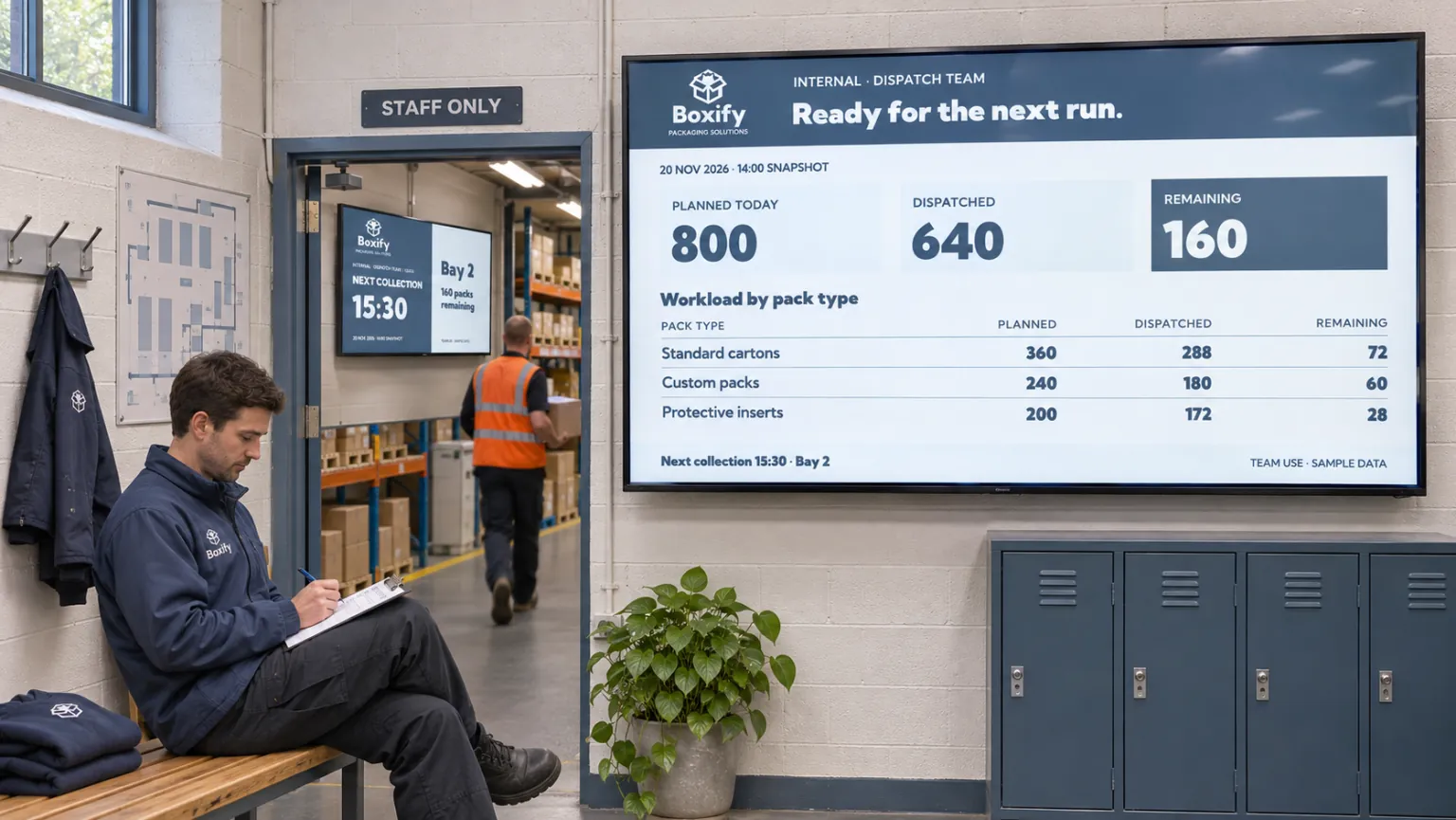
The page might contain operational metrics, an intranet announcement, room availability, a calendar, a menu, or queue information. If it requires sign-in or access to an internal network, the important question is how the signage installation will reach and display it. A page working in an employee's browser does not establish that it will work in the screen's playback environment.
Keep the page's presentation, or use selected values?
Choose webpage media when you want to retain the source page's design. It turns a URL into content for a booking playlist. An operations team can show a dashboard in a shared work area; facilities can show a hosted room-booking or calendar view at reception. Education and public-service teams may use suitable intranet or public information, while a store can reuse a hosted menu or queue view where the source supports that use.
If only selected values are needed, a data-bound template may fit better than the whole page. KPI dashboards and business data on screens explain that alternative. A verified partner or custom integration is another possibility where one has been configured; partner-integration guidance describes that separate arrangement.
Choose a playback mode the installation can support
For a webpage, the two modes provide different experiences:
| Mode | What the audience sees | What to establish |
|---|---|---|
| Live | The page running in the device's browser. | The browser can display the required page and support its playback requirements. |
| Snapshot | A static image captured and refreshed at an interval. | A periodically refreshed image supplies the information people need. It is not a live interactive page. |
Snapshot can offer broader playback compatibility, but the source still needs to be accessible for capture. Choose the mode around the information and the installation rather than assuming that a live view is always necessary.
Webpage settings support login, cookies, or custom request headers where the page, player, and playback mode permit them. Some authentication methods remain incompatible. Coordinate access and connectivity with IT and the page owner before relying on the content.
Check the page from the installation, not only from your desk
For an operational dashboard, confirm first that its content is appropriate for the screen's audience. Add its URL as webpage media, select the suitable playback mode, configure supported access settings, and preview the result. The Webpages guide explains this setup before the item is added to a booking on the operational channel.
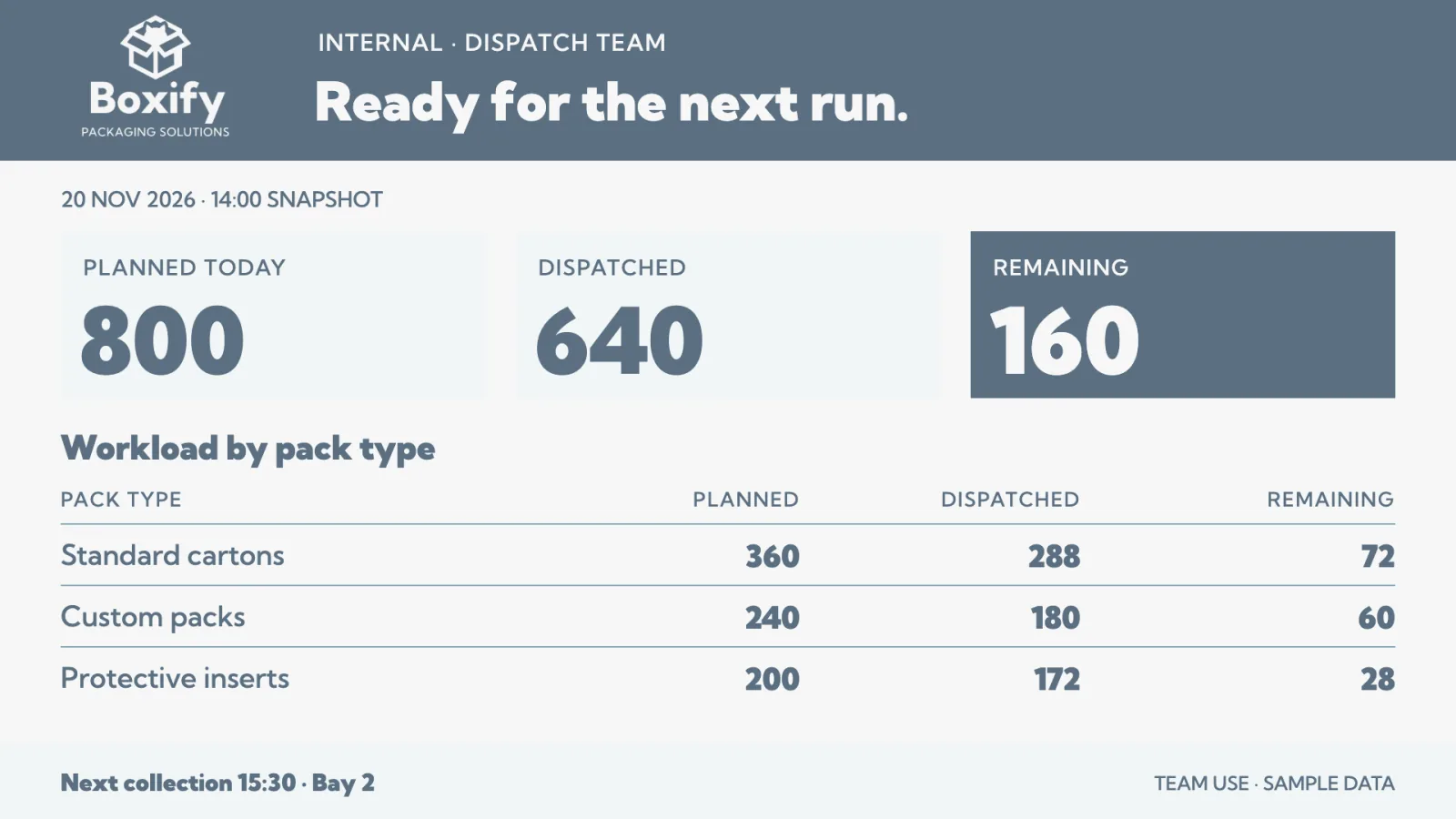
Then test the actual player on the deployment network:
- Can the page be reached and displayed using the intended sign-in method and mode?
- Do source updates appear as expected, and does the page remain available?
- If a refreshed image is sufficient, does Snapshot provide the required information? If viewers need the live page, does it work in the player's browser?
Test the page, authentication, playback mode, and player as a combination. Webpage media cannot display every secured page. Operations, facilities, public-service, education, and IT teams should know how to distinguish an unavailable source from a design or scheduling problem.
Keep ownership and fallback content clear
Agree who maintains the page and its access settings, and recheck playback whenever they change. Keep fallback content ready if the internal source becomes unavailable. Reusing a page removes a duplicate presentation to maintain, but the page's updates, sign-in requirements, and connectivity still determine what viewers can see.
For related applications, browse the other use cases.